
3D Modeling App: Sculpt & Draw
3D Modeling AppsArt & Design
4.2424.00 Reviews
- Version
- 1.20.21
- Installs
- 10.00M
- Age Rating
- Everyone
Screenshots
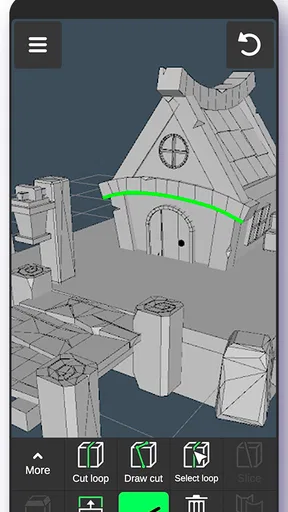
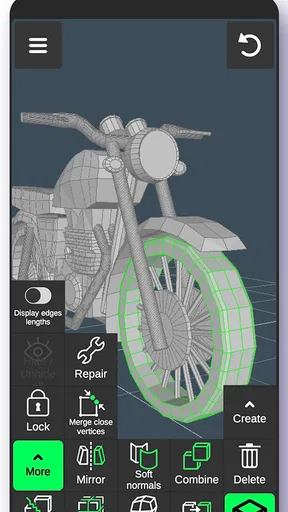
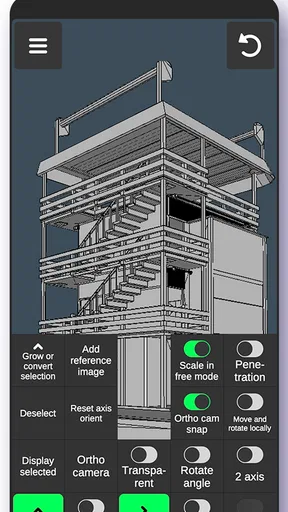
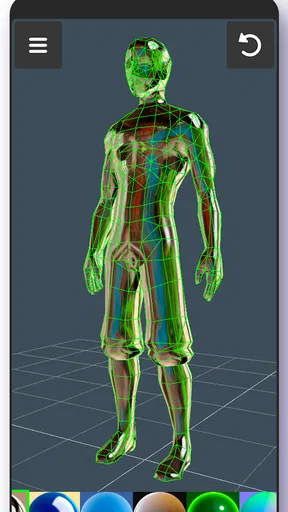
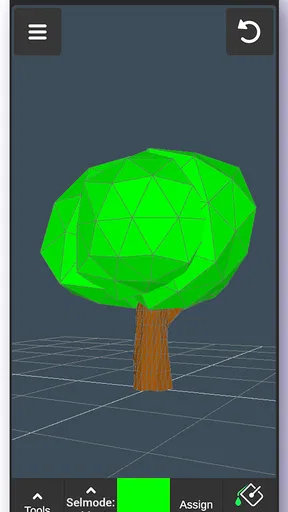
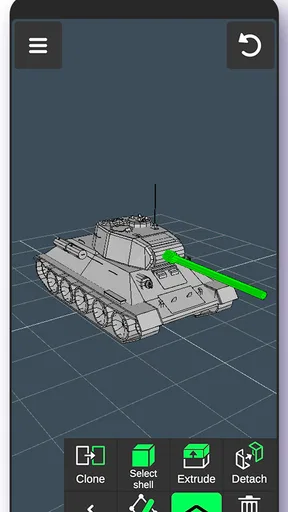
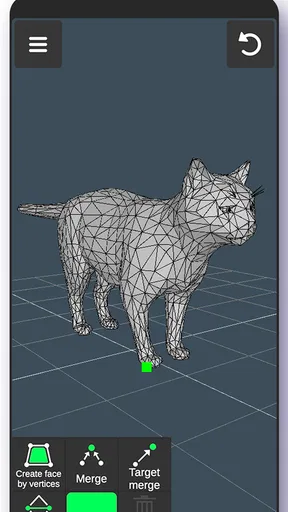
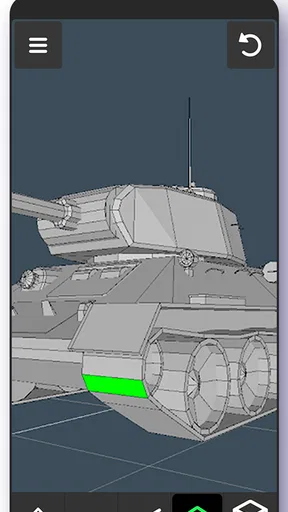
Our Review of 3D Modeling App: Sculpt & Draw
 Analysis by Appyee
When I try a mobile 3D art tool, I look beyond the brushes: I want to know whether it fits into a real day, whether network interruptions get in the way, and what kind of work is sensible to do on a small screen. 3D Modeling App: Sculpt & Draw is a free art-and-design app from 3D Modeling Apps, and its mix of sculpting and drawing makes it an inviting place to explore ideas without sitting down at a full desktop setup.
What a connection can—and cannot—change
Network access matters most around the parts of a creative app that reach beyond the work surface. If you want to browse tutorials, look for inspiration, or share a finished piece, a reliable connection makes those activities more convenient. I’d treat those moments as separate from the actual modeling session: plan a shape, work through it, and save your attention for the canvas rather than expecting every part of the experience to behave the same way.
That distinction is useful when you are choosing where to work. On a commute or in a waiting room, I would start with a clear, small goal—rough out a character silhouette, test a form, or practice a few marks—rather than depend on browsing or sharing in the middle of the session. When I have a steadier connection later, I can turn to any online-facing parts of the workflow. It is a simple way to keep a short creative break productive without making connectivity the center of the task.
A pocket-sized studio has its own rhythms
On a phone, the biggest advantage is being able to capture an idea before it fades. I might sketch the outline of a decorative object while waiting for a friend, then revisit it on a tablet when I want more room to inspect the form. Touch gestures can make orbiting and zooming feel natural, but they also mean that a careful grip and deliberate movement matter; a stray gesture can interrupt the flow when you are aiming for a precise detail.
I find it helps to alternate between broad decisions and small edits. Establish the overall shape first, rotate the model to check how it reads from another angle, and only then spend time on surface detail. That order is especially helpful on a compact display, where tiny marks can look convincing from one view but fail to improve the object as a whole. The app’s appeal is less about replacing a large workstation and more about making 3D practice accessible in the spaces between other plans.
Keeping a session manageable
Any mobile modeling session can become less comfortable as a project grows: more detail asks for more attention, and a phone has less room for your hands and the artwork than a desk setup does. I would keep early experiments modest, pause to inspect the whole model, and avoid adding detail simply because a brush makes it easy. If the device starts feeling warm or the workspace becomes less responsive, a sensible recovery step is to stop adding complexity, preserve the work using the app’s available controls, and return to a lighter pass after a break.
Connectivity can also shape recovery. If an online gallery or tutorial does not load when you need it, I would not let that derail the modeling itself. Switch to a task you already understand, such as refining the silhouette or testing a color choice, and come back to the network-dependent activity later. That approach is useful for beginners too: it keeps learning from turning into a series of interruptions and gives you room to build confidence with the tools already in front of you.
Spend attention and data deliberately
For anyone keeping an eye on mobile data, I’d reserve downloads, tutorial browsing, and sharing for Wi-Fi when convenient, rather than repeatedly loading media while away from home. That is a general way to manage a creative app on a limited plan, not a reason to avoid trying it. More importantly, keep a project’s next step in mind before opening network-facing areas: a focused session is easier to finish than one that jumps between making, browsing, and posting.
There is also a practical trade-off in deciding what to share. A polished image can invite useful reactions, but a rough study may be more valuable to keep private while you are still changing its proportions. I would use community feedback for a specific question—such as whether a shape reads clearly—rather than treating comments as a substitute for your own judgment. That makes sharing more purposeful and keeps the creative process under your control.
Who will enjoy it most?
This is a good fit if you are curious about sculpting, want a portable place to experiment, or already draw and would like to think in volume as well as line. It can also suit a hobbyist who wants to practice forms in short sessions instead of committing to a complicated desktop workflow. If your main goal is production-ready assets, advanced technical control, or a large workspace for precise manipulation, I would compare it with desktop 3D software before making it the center of a serious pipeline.
Compared with a conventional drawing app, the attraction here is the chance to work with a form from multiple angles rather than only build a flat image. Compared with a full desktop modeling package, the compromise is the mobile format: convenient access and touch interaction in exchange for the comfort and precision of a larger screen and dedicated controls. Neither option is automatically better. I’d choose based on whether the job is a quick concept, a learning exercise, or a model that needs a more exact production process.
A realistic use for me would be shaping a small mascot idea during a lunch break: block out the head and body, rotate it to see whether the silhouette holds up, then leave finer changes for a quieter session. That keeps the first pass focused and gives me something concrete to judge later. It also avoids a common beginner trap—polishing one front-facing view before checking whether the rest of the object makes sense.
Questions worth settling before you start
Is it a sensible first 3D app? I think so if you are willing to learn by experimenting and do not expect every tool to feel obvious at once. The store marks it for Everyone, and its approachable framing makes it less intimidating than beginning with a large desktop package. Still, newcomers will get more from it if they pick one small subject and repeat the basic actions rather than trying to master every option in a single sitting.
Will it suit an older device? The app requires Android 6.0 or later, but the age of the operating system alone does not guarantee a comfortable modeling experience. A device with limited memory or a smaller display can make detailed work harder, so I would begin with a simple project and see how the controls feel before investing time in a complex one. The current version is 1.20.11, and keeping an app current is a sensible first step if you encounter an issue.
Is it free to try? It is free to download, with in-app purchases ranging from $0.99 to $34.99 per item. I’d explore the basic workflow first and consider a purchase only if a specific paid item solves a problem you have actually encountered. The app has a 4.4 average from around fourteen thousand ratings and more than ten million installs, which suggests broad interest, but popularity cannot tell you whether its particular tools match your habits.
Diving Into the Features
First things first, when you open Sculpt & Draw, you're greeted with a sleek, user-friendly interface. It's clear that the developers have put a lot of thought into making the app accessible for both beginners and seasoned pros. The layout is intuitive, so you’re not left fumbling around trying to find tools.
The app boasts a variety of tools for 3D modeling and sculpting. You can start from scratch or choose from a range of pre-made models to tweak. The sculpting tools are surprisingly powerful for a mobile app. I found the pressure-sensitive brush a game-changer—it’s like having a digital clay that responds to your every move.
One feature I found particularly impressive is the ability to switch between sculpting and drawing modes seamlessly. You can add intricate details to your designs with ease. The app also supports layers, allowing you to build complex models step by step without worrying about messing up your previous work.
Performance and Usability
In terms of performance, Sculpt & Draw runs smoothly on most devices. I tested it on both Android and iOS, and it handled complex models without any noticeable lag. The app is optimized to make the most of your device’s hardware, so you don’t feel like you’re working with limited tools just because you’re on a phone or tablet.
The app does require a decent amount of RAM, so older devices might struggle a bit, especially with more detailed models. However, on newer devices, it’s a breeze. The controls are responsive, and the multitouch gestures make navigating the workspace a piece of cake.
Community and Support
What makes Sculpt & Draw stand out is its thriving community. The app includes a feature where you can share your creations directly to a gallery, allowing others to view and comment on your work. It’s a fantastic way to get feedback and inspiration from fellow artists.
Support-wise, the developers are pretty active. There’s a comprehensive FAQ section and plenty of tutorials to help you get started. If you run into any issues, the app’s support team is responsive and eager to help. They’ve even integrated a feedback option within the app to make it easier for users to suggest improvements.
The Verdict
All in all, Sculpt & Draw is a powerful and versatile app that has a lot to offer for both hobbyists and professional artists. Whether you’re looking to pass the time creatively or working on a serious project, this app provides the tools you need to bring your ideas to life.
With its user-friendly interface, robust feature set, and active community, it’s an excellent choice for anyone interested in 3D modeling. Give it a try, and you might just find it becoming a staple in your creative toolbox.
My connectivity verdict
For me, the best way to approach this app is as a mobile making space first and a place to find guidance or share work when the connection suits. The gallery and tutorials can add context to a project, but they are not the reason to open a sculpting tool in the first place. A short, self-contained task—one form, one adjustment, or one drawing pass—is a better match for a distracted mobile setting than a session that depends on constant browsing.
There is a free entry point, while optional purchases are priced from $0.99 to $34.99 per item, so I would try the core workflow before deciding whether anything else is worth paying for. The app was released on August 20, 2024, and is developed by 3D Modeling Apps. Overall, I’d recommend giving it a try if you want an approachable way to experiment with 3D shapes on a phone or tablet. I would choose a desktop alternative for exacting production work, but for sketching forms, learning by doing, and fitting creative practice into spare moments, this app has a clear place in my toolkit.
Privacy and Permissions
See what permissions an app requests and how it handles your data.
- Photos/Media/Files
- read the contents of your USB storage, modify or delete the contents of your USB storage
- Storage
- read the contents of your USB storage, modify or delete the contents of your USB storage
- Wi-Fi connection information
- view Wi-Fi connections
- Other
- view network connections, full network access, prevent device from sleeping, read Google service configuration
Verdict
Strengths of 3D Modeling App: Sculpt & Draw
- Intuitive interface for beginners.
- Wide range of sculpting tools.
- Supports export to multiple formats.
- Regular updates with new features.
- Responsive customer support team.
Limitations of 3D Modeling App: Sculpt & Draw
- High battery consumption.
- Occasional crashes on older devices.
- Limited free version features.
- Large file size on installation.
- Requires stable internet for cloud saves.
Similar Picks in This Category
View All
Canva: AI Photo & Video Editor
Canva4.8

PENUP – Drawing-sharing SNS
Samsung Electronics Co., Ltd.4.5

Crafto
Kutumb App4.6

Sketchbook
Sketchbook4.1

ibis Paint X
ibis inc.4.5

Adobe Express: AI Photo, Video
Adobe4.6
Frequently Asked Questions
What platforms is 3D Modeling App: Sculpt & Draw available on?
3D Modeling App: Sculpt & Draw is available for both Android and iOS platforms. You can find it on the Google Play Store for Android devices and the Apple App Store for iOS devices. Make sure your device meets the app's minimum system requirements for optimal performance.
Does 3D Modeling App: Sculpt & Draw require an internet connection to function?
No, 3D Modeling App: Sculpt & Draw primarily operates offline, allowing you to work on your 3D models without an internet connection. However, certain features like cloud sync and sharing your creations directly from the app may require internet access.
What are the main features of 3D Modeling App: Sculpt & Draw?
The app offers a range of features including intuitive sculpting tools, customizable brushes, and texture painting options. It also supports importing and exporting various file formats, making it versatile for different projects. Additionally, the app provides tutorials for beginners to help them get started with 3D modeling.
Is 3D Modeling App: Sculpt & Draw suitable for beginners?
Yes, the app is designed to be user-friendly and includes tutorials and guides to help beginners learn the basics of 3D modeling and sculpting. Its intuitive interface and easy-to-use tools make it accessible for users with little to no prior experience in 3D design.
Are there any in-app purchases or subscriptions in 3D Modeling App: Sculpt & Draw?
While the app is free to download, it offers in-app purchases to unlock additional features and tools. There might also be subscription options for advanced functionalities, such as premium textures and cloud storage. Be sure to review these options within the app to decide what suits your needs.
